

Medical ID on iPhone and AndroidA Simple Emergency Feature Everyone Should Set Up
Could your smartphone help emergency responders when you need it most?
Most people carry their smartphone everywhere, but few realise it includes a built-in feature designed to provide important medical information during an emergency.
If you’re unable to communicate due to illness, injury or an accident, Apple’s Medical ID and Android’s Emergency Information features can help first responders access key details such as medical conditions, medications and emergency contacts directly from your lock screen.
It only takes a few minutes to set up, yet it’s a feature that could prove invaluable when every second counts.
Whether you’re managing a long-term health condition, taking medication, or simply want to be prepared, setting up your phone’s emergency information takes only a few minutes and could make a significant difference when it matters most.
Why Medical ID Matters in an Emergency
Imagine being involved in a road traffic accident, experiencing a severe allergic reaction, or suffering a medical episode away from home. In these situations, emergency responders may need immediate access to important details such as:
 Allergies
- Current medications
- Existing medical conditions
- Blood type (if known)
- Emergency contacts
- Important medical notes
Apple’s Medical ID allows emergency responders to view this information from the lock screen without needing your passcode. Apple states that responders can access information such as allergies, medical conditions and emergency contacts when Medical ID is enabled.
Android devices offer a similar feature through Emergency Information and the Personal Safety system, allowing medical information and emergency contacts to be viewed when required.
While these features are not a replacement for professional medical records, they can provide valuable context during the first few minutes of an emergency.
How to Set Up Medical ID on an iPhone
If you use an iPhone, the feature is built directly into the Apple Health app.
Setting Up Medical ID
- Open the Health app.
- Tap your profile picture.
- Select Medical ID.
- Tap Edit.
- Enter relevant medical information.
- Enable Show When Locked.
- Add emergency contacts.
- Save your changes.
Apple specifically recommends enabling Show When Locked, as this allows emergency responders to access your critical information without needing your device passcode.
Users can also choose to share Medical ID with emergency services during emergency calls in supported regions.
How to Set Up Emergency Information on Android
The exact process varies slightly depending on the manufacturer and Android version, but most modern Android phones include emergency information settings.
Typical Setup Process
- Open Settings.
- Search for Emergency Information, Safety & Emergency, or Personal Safety.
- Add medical information.
- Add emergency contacts.
- Review lock screen visibility settings.
- Save your details.
Google notes that emergency information may be viewable from the lock screen and can include medical information and emergency contacts.
If your device includes Google’s Personal Safety app, you may also have access to additional emergency features such as Safety Check and Emergency SOS.
Don’t Forget the Notes Section
One of the most overlooked aspects of these emergency features is the ability to include additional medical notes.
This can be particularly useful if you have health information that may not fit into standard categories.
Examples could include:
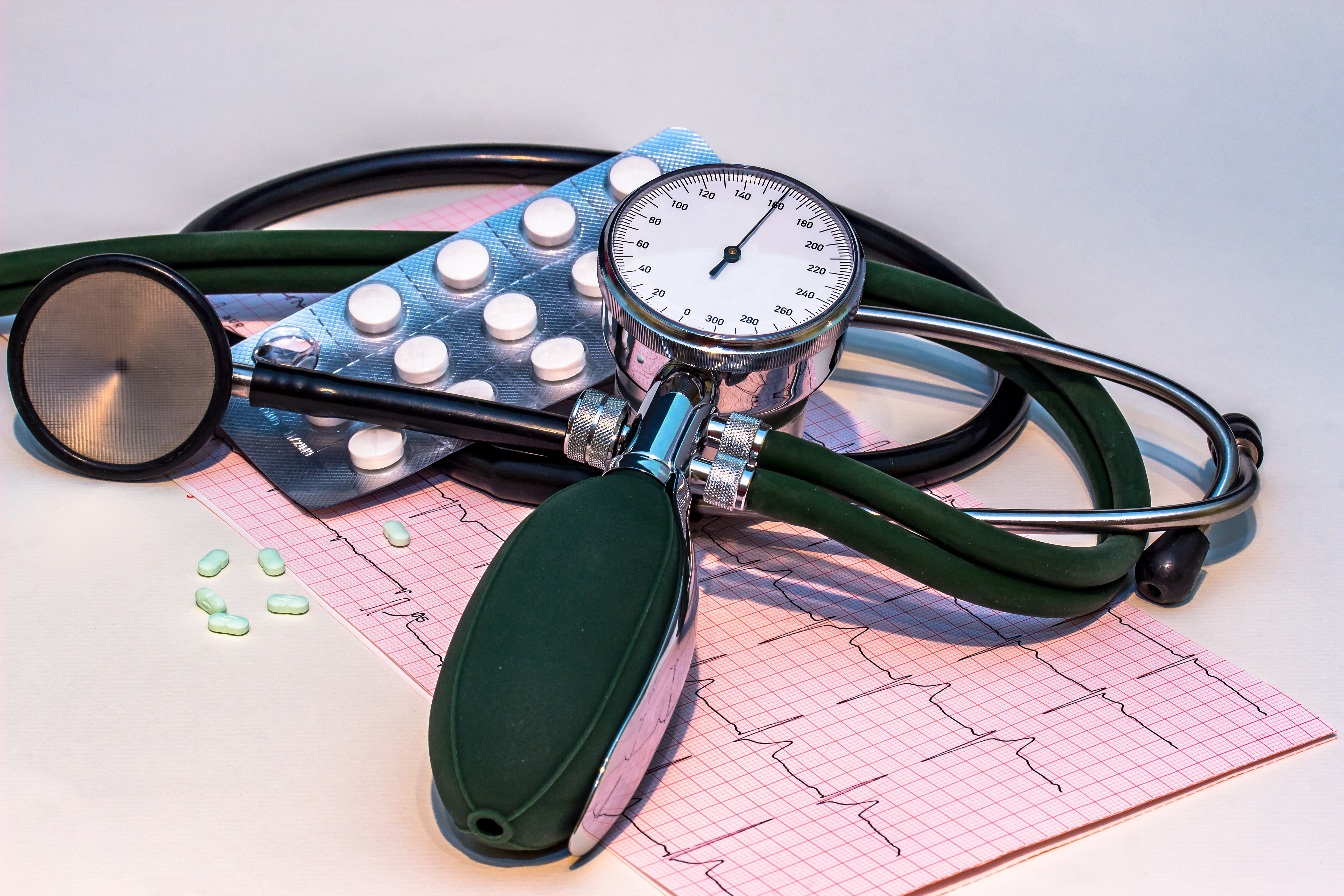 A medical condition that causes unusually low blood pressure
- Rare allergies
- Important medication instructions
- Communication difficulties
- Implanted medical devices
- Specific treatment considerations advised by your clinician
For example, someone whose blood pressure is naturally much lower than average may wish to record this so that it is not immediately interpreted as an abnormal emergency reading.
The goal is not to create a complete medical history. Instead, provide concise information that could genuinely help first responders understand your situation more quickly.
Important: If you are unsure what medical information should be included, or whether a particular condition, medication or health characteristic is relevant, consult your GP, consultant, pharmacist or other qualified healthcare professional. They can advise on what information would be most useful in an emergency while helping you avoid recording unnecessary personal information.
Keep Information Accurate and Up to Date
Setting up Medical ID is not a one-time task.
Your health information should be reviewed whenever:
- You start a new medication
- A medication is stopped
- You receive a new diagnosis
- You develop an allergy
- Emergency contact details change
- Your GP or specialist advises important updates
As a simple reminder, consider reviewing your emergency information every six months, perhaps when the clocks change or during a regular device check-up.
Outdated information can be almost as problematic as having no information at all.
Privacy and Data Protection Considerations
A common concern is privacy.
It’s important to remember that information shown through Medical ID or Android Emergency Information is specifically designed to be accessible when your phone is locked. This is what allows emergency responders or members of the public assisting you to view it.
Because of this, we recommend:
- Including only information that could genuinely assist during an emergency
- Avoiding unnecessary personal details
- Checking what information appears when the device is locked
- Reviewing settings regularly
For UK users, this approach aligns with good data minimisation practices, a key principle of UK GDPR. Only store information that serves a clear purpose and provides genuine value in an emergency.
A Simple Step That Could Make a Big Difference
At Assist Business IT, we often talk about using technology to make life easier, safer and more productive. Medical ID is a perfect example of a simple feature that many people overlook.
Whether you’re a business owner travelling between client meetings, part of a busy SME team across Wiltshire, Hampshire or Dorset, or simply looking after yourself and your family, spending a few minutes setting up your emergency information is time well spent.
You hope it will never be needed.
But if the situation arises, having accurate emergency information available could help responders make better-informed decisions when every second counts.